Blog Instructions
Students READTHIS
Part 1: Clone the Repo
You do not need to Fork this repository before cloning it.
Part 2: Add Content
-
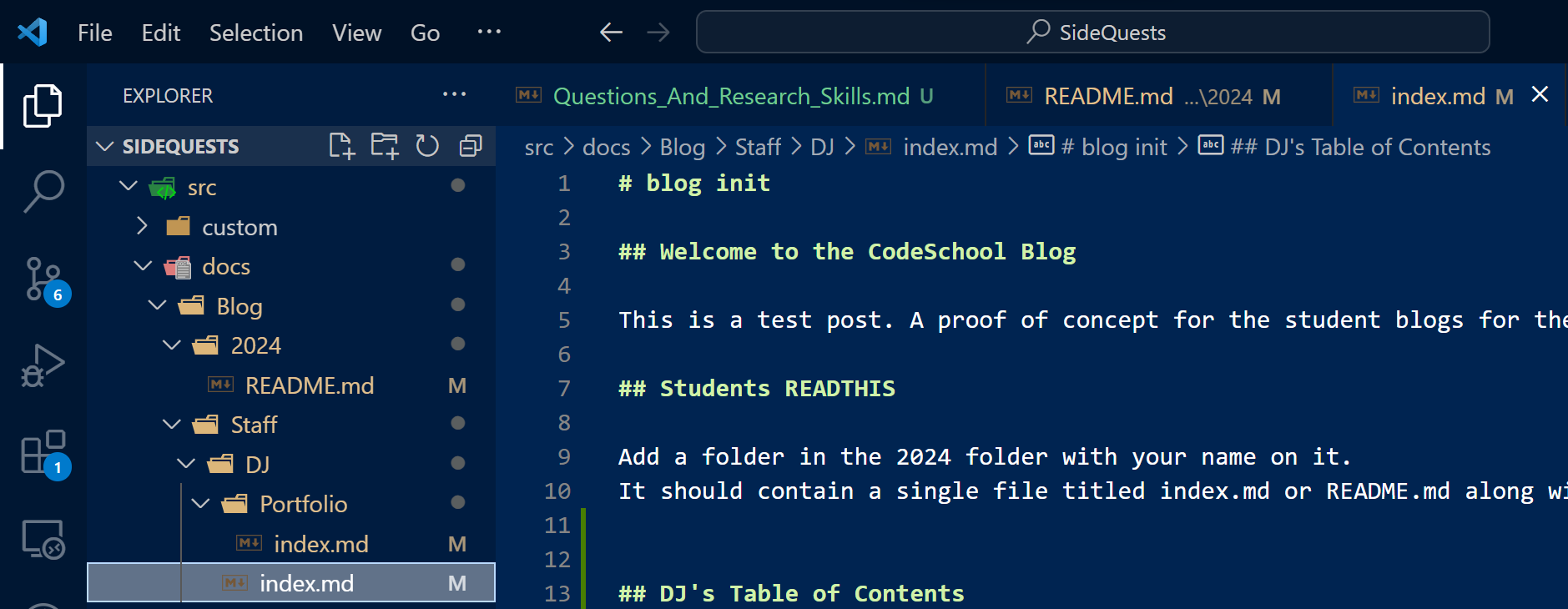
In the src/docs/Blog/20XX/ folder, 20XX should match the year you joined CodeSchool, add a folder with your github username on it.
-
In the folder that you created for your username:
-
Create a single file titled
index.md,source.mdorREADME.mdThis file will serve as the home page for your personal section of the blog website. -
The file name for this first file (either
index.md,source.md, orREADME.md) is case sensitive and must be written exactly as displayed here. -
Every folder you create in this repo will need to have one of these files
-
To add more blog posts. Continue creating files in the folder you created with your username.
When you create new files or folders, do not include spaces or special characters in the file or folder name. Instead use hyphens, underscores, camelCasing, or PascalCasing to indicate multiple words.
Example:
Code School.md is an invalid file or folder name because it has a space. ❌
Code @School#00 is also an invalid file or folder name. ❌
codeSchool.md, CodeSchool.md, Code-School.md, and Code_School.md are all valid patterns. ✅
Since Your first blog post will be about a Growth Mindset, here are some ideas for file names:
    GrowthMindset.md
    1-GrowthMindset.md
    08-25-2026.md
These are all reasonable choices based on the content, the fact that this is your 1st blog, and that the class is from Aug 25, 2026.
Feel free to be creative and remember to avoid using spaces in the file & folder names.
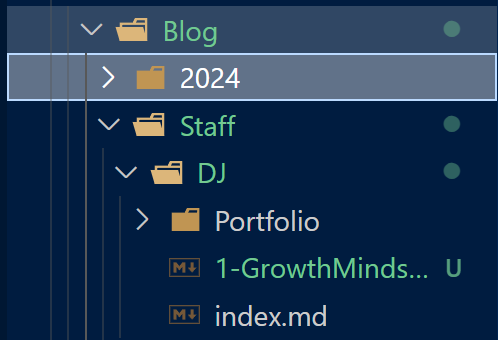
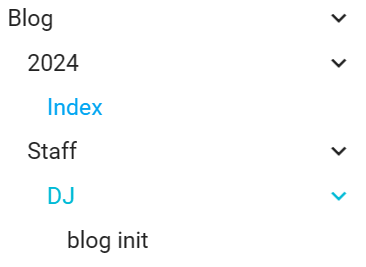
When your file is added into the repo and live on the site, you will see the title element from your page set as the title in the left nav bar.
In VSCode/Filesystem:
In a Web Browser:
Part 3: Update YOUR Link
Now that your content is created in the repo, go back to the index.md file in the 2026 folder.
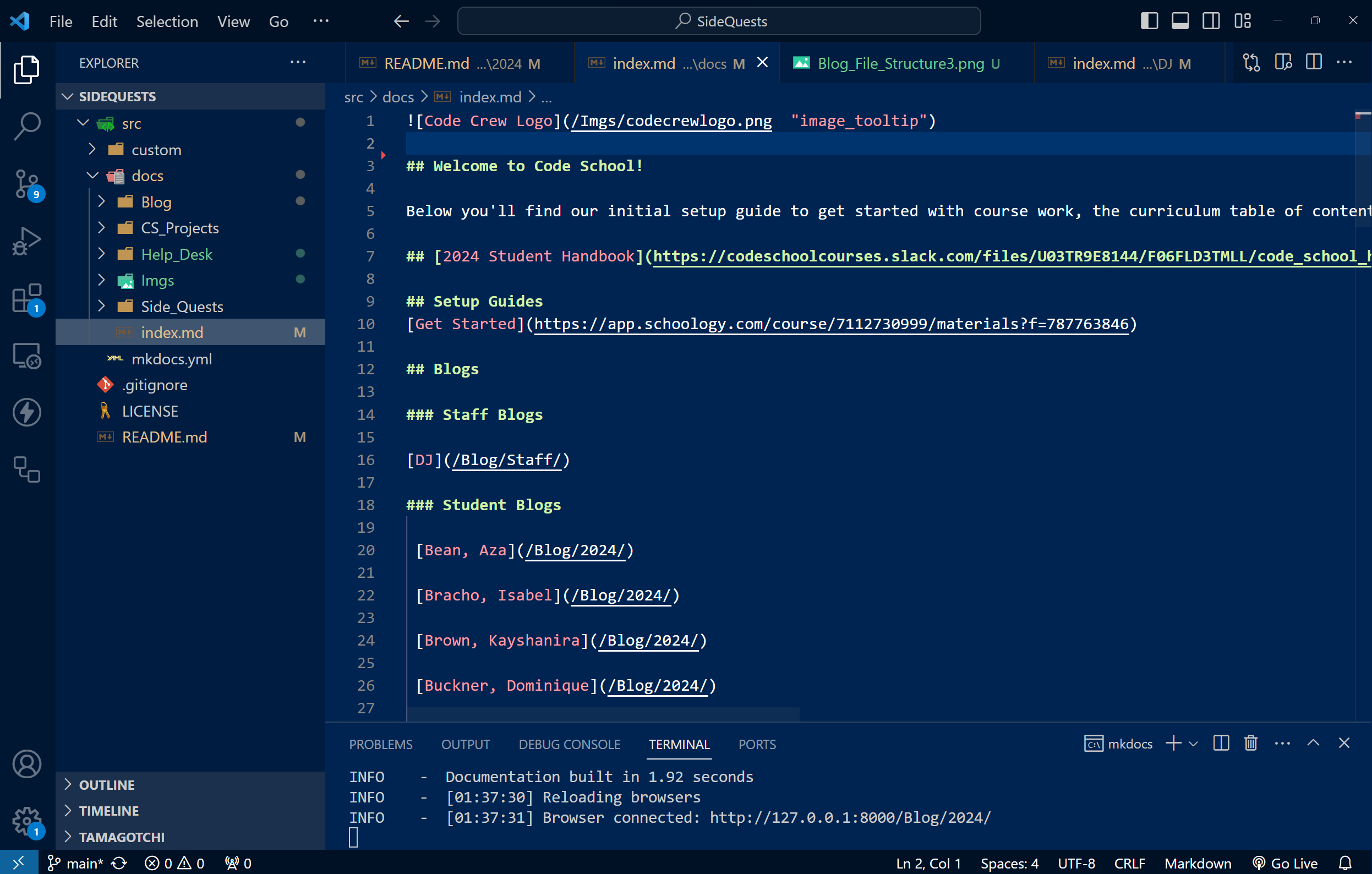
You should see your name alongside a link that is almost pointing to where your blog content sits. After the last slash, add your Github username to the link and save the file.
Git Push, Toast 🍻🥂
Now, simply Add-Commit-Push
git add -A
git commit -m "mrjones91 blog and directions"
git push
If your git push command fails, try using git pull.
git pull
Then try to git push again.